
As a result of damage to critical infrastructure, changing media distribution landscape and prohibitive costs, television services for the remote chain ended June 1, 2025. TV services for Gunnison and Crested Butte are scheduled to end June 1, 2026.
We understand this affects access to entertainment and communications.
To ease this disruption, we created a guide outlining possible alternatives.
Questions? Please call us at 970.641.8725, and we will guide you through the available options.
How to stream TV (for beginners)
What is streaming?
Streaming allows you to watch entertainment over your internet connection instead of via cable, satellite or antenna.
What do I need to stream on my television?
- An internet connection
- A smart TV OR a normal TV + a streaming device
- Streaming apps
How do I start streaming on my TV?
- Ensure you have internet.
If you already have an internet connection, move on to step 2. If you don’t, you need to sign up with a provider that services your area.
- Determine what type of television you have.
Smart TVs are TVs that connect to the internet. To check if your TV is smart, press the Home or Menu button on your TV remote. If you see apps like Netflix or Amazon Prime, you have a smart TV. If you have a smart TV, skip to step four.
If you only see channels or settings, you have a normal TV.
If you have a normal TV, check the back for an HDMI port. TVs manufactured before
2009 may not have one and will require a special adapter. 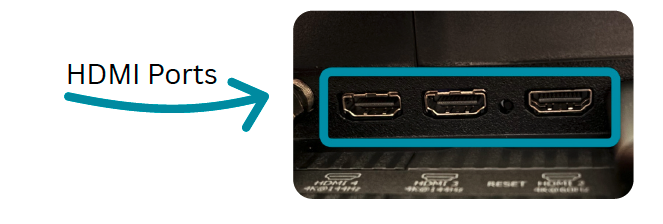
- No smart TV? Select and purchase a streaming device.
A streaming device connects your TV to the internet and is required on any non-smart TV.
Your streaming device connects to the internet through wifi or an ethernet cable. It connects to your television through the HDMI port (or special adapter).
popular streaming devices
Amazon Fire TV Stick | Roku | Apple TV | Google TV
Once purchased, plug your device into an outlet and the HDMI port on your television, then use the TV remote to change the source or input to the corresponding HDMI port. When the device screen appears on your television, follow the activation steps with the streaming device remote.
- Connect your TV or streaming device to the internet.
You can connect in two ways.
wifi (wireless)
- Open the Settings or Network menu on your smart TV or streaming device.
- Select your home wifi network name.
- Enter your wifi password.
- Look for a confirmation message that says, “connected.”
ethernet (cable)
- Plug one end of an ethernet cable into your internet router or modem.
- Plug the other end into the ethernet port on your TV or streaming device.
- The connection happens automatically—no password needed.
- Choose your streaming services.
Streaming services provide the programs you watch. It will take a little research to figure out which streaming services are best for you. Some are free, others require a monthly subscription. Some offer live programs, others allow you to watch previously aired programs on demand.
You can sign up for subscription streaming services via your smart TV, streaming device, smartphone, computer or tablet. Be sure to write down your username and password for later.
Subscription streaming services require a credit card, debit card or electronic payment system like PayPal to sign up.
popular streaming services
Subscription Required
Netflix | Hulu | YouTubeTV | AppleTV+ | Prime Video | ESPN+
Free
PlutoTV | Tubi | Roku Channel | Sling Freestream | Plex
- Open the streaming service apps on your TV.
Locate your chosen streaming service app on your television or streaming device. Some apps come pre-installed—they appear on your screen automatically. Others you must download from the tv/streaming device app store.
Click on the streaming service app you want to use. The first time you open a subscription app, it will prompt you to enter your username and password. Moving forward, it will remember you.
Watch live TV from your computer
A significant number of channels carried by MetRec can be live streamed for free via web browser. These can be used when the TV signal is down or choppy.
Click the links below to start watching.
- KWGN – CW2
- KCNC – CBS 4 (news only)
- Court TV
- KMGH ABC 7 (news only)
- KRMA – RMPBS
- PBS Kids
- PBS World
- PBS Create
- PBS 12
- KUSA NBC9 (news only)
- KDVR – FOX 31 (news only)
- Charge!
- The Nest